Showing posts with label presentation skills. Show all posts

Which Space is Right For You?

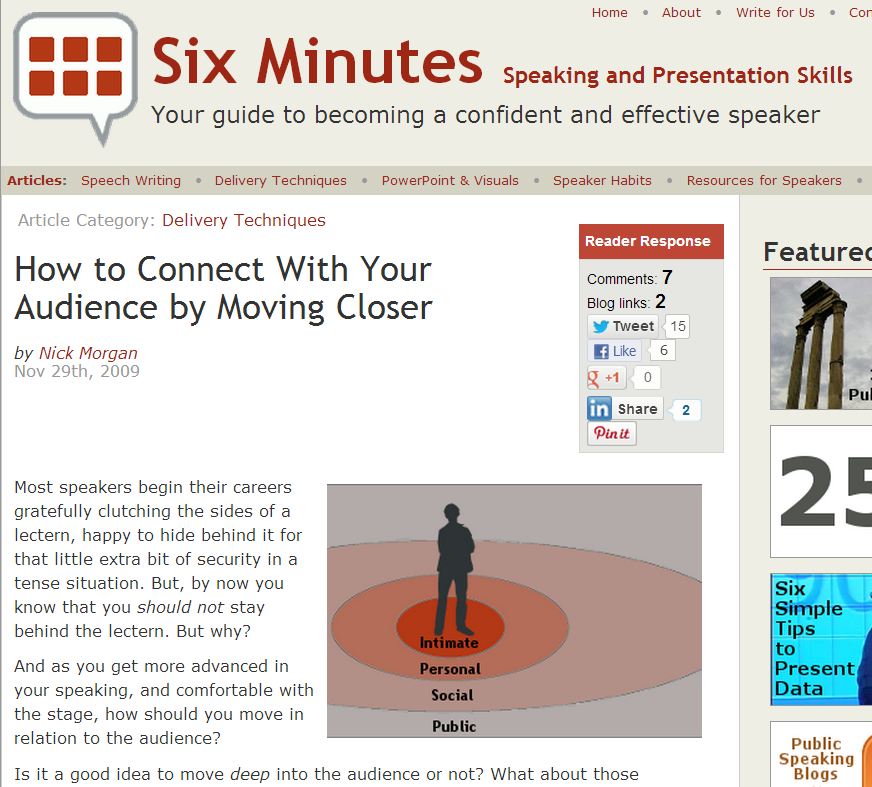
Screenprint from sixminutes.dlugan.com
I have read this great post by Nick Morgan at Six Minutes a few times now:


It is written for public speakers, and contains some useful messages for facilitators too.  Each time I read it I take something different from it.  The stuff I really appreciate:

  • There are four distinct zones:  public, social, personal and intimate.  And we need to occupy 'personal space' to have an impact.
  • When we move towards someone they are more likely to trust us,and the converse is true too.
  • People have empathy for the observed experience of others, so we don't need to move into everyone's 'personal space' to have an impact on a larger crowd.
  • Avoid turning your back on people, as it communicates disinterest.

Extending what Nick has said:

  • If you are facilitating a session of more than a couple of hours, it is important to think about 'resting' people as well as making a 'world changing impression' on them.  Use 'moving back' to give them a break.
  • One way I 'move back' is to go and fiddle with my notes or make myself a cup of tea after I have given instructions for an activity.  If you stand close by, looking attentive, people can be distracted.  Let them get on with the activity.
  • If you are going to move forwards to emphasise what you are saying, give yourself some space.  Prepare for 'big messages' by moving back a little (or even a lot) first.

...Geoff
www.performancepeople.com.au

Learning from Others

There is so much we can learn from observing other people when they facilitate.  In meetings, presentations, lectures and facilitated workshops I am sometimes distracted.  This may be due to daydreaming, but is more likely to be because my brain is operating on another plane.  On that plane I am asking questions like:
  • What did they just do?
  • Why did they do that?
  • What will they say in response to that interjection?
  • Will they address this obvious problem with their statement?
  • What will they do next?
  • Could or would I do what they just did?
  • When would it be appropriate to do what they just did?
  • What could they have done differently then?
I am not completely somewhere else when I am doing this, but I couldn't say I am strictly attending to the topic in hand either.

I recently came across some notes I took at a seminar a couple of years ago - I was not writing this blog at the time, but I had been developing a Presentation Skills workshop. I wrote down:
  • Use the names of people in the audience, lots of people.
  • Don't stand in front of the screen.
  • Don't look at the screen.
  • Don't just acknowledge VIPs, have something to say that is relevant to their portfolio/interests.
  • Start the session with a question or a confrontational statement.
  • DON'T read from the slide.
  • Check the size of the text on your slides (at the venue, on the venue's equipment)!
Pay attention, there is a lot to learn from other people's performance.

...Geoff
www.performancepeople.com.au

Presenting Content from a Report or Other Document

Images adapted from AGSO 2000 'Natural hazards and the risks they pose to South-East Qld'.
At a recent conference, a presenter wanted to show the audience some important information from a recent report.  He had the report on the laptop attached to the projector.  He opened the report and located a graph.

It may have been a great graph, but as it had been prepared for publication in a paper-based A4 report, it did not scale to 'readable' when projected onto the screen.  Also, he had to 'flick' some pages to get to the graph - with blurring content projected onto the screen, and the top of his head prominently displayed to his audience for quite a while.

There is a right way to do this, and it takes some preparation time.  First, you need to get the graph out of the report.  If possible, go back to the source (often Excel), and manipulate the scales and labels to make them at least 18 point text.  If this is not possible, consider recreating the graph using your drawing skills in PowerPoint.  As a worst case, copy and paste directly between the report and PowerPoint.  You can overlay larger labels inside PowerPoint.

Consider remaking the graph as a 'build' - starting with the X and Y axes, then adding the bars or lines into the graph one at a time, so you can explain each element.  On a bar graph, you may put up a bunch of prior years' data in one go, and then add more recent years one at a time.  On a line graph, adding a line at a time allows your audience to absorb the content.

In PowerPoint, show the report cover (assuming the title is big and bold) on a slide, to set the context.  Then add slides with the elements of the modified graph - readable and able to be explained for the benefit of the audience.  You can add other content, such as key points or recommendations, but only if you summarise them to key words only.

In conclusion, even though you can open documents on the laptop, try to avoid it if at all possible.

...Geoff
www.performancepeople.com.au

Product Review: My Awesome Kensington Wireless Presenter

Kensington Wireless Presenter in Use (all rights reserved)
(Updated - see link at the bottom of this post.)

I thought it might be time to write about a tool I use weekly, and sometimes daily.  For those of you familiar with Charles M. Schulz's Peanuts comic strip, it is my Linus blanket.  I find it comfortable to use and (with charged batteries) reliable.  It is familiar, robust and satisfyingly chunky.

It is a presentation remote or wireless presenter.  It is made by Kensington, and must be getting 'long in the tooth', as the model I have is no longer on sale in Australia.  Unusually for tech gadgets, the form factor has been retained, and its functionality extended.  (In my experience much of the tech I love goes off the market a little before my old one wears out.  Yes Microsoft, I am talking about that sleek black laser mouse I could never find again.  I haven't forgotten.)  The updated version is a Wireless Presenter with Red Laser & Memory (the link is to the Australian Kensington site).  It is like mine except that, as the name indicates, the 'usb dongle' with the wireless smarts also has 1Gb of memory to store your presentation files.

Kensington Wireless Presenter & USB Dongle
(all rights reserved)
There are four buttons on the remote.  This may seem lean when compared with the alternatives on the market, but is more than sufficient to me.  In fact, I mainly use two buttons - the right (advance slide) button and the left (go back a slide) button.  These two simple buttons allow me to wander untethered by my keyboard or mouse.  I can roam around the room, and advance and retreat slides at will.

The other two buttons are effectively redundant.  I so seldom use the 'blank screen' button that I could as easily press the 'b' key on the keyboard; and I am reluctant to use the laser pointer, as the pointer wanders around the screen, making me look nervous (even if I'm not).  I should note that the laser pointer is good for entertaining cats, but I chose to buy a cheaper laser pointer for this purpose, so I would be able to find this one when I need it.

The 'usb dongle' provides the wireless signal.  It is stored inside the base of the unit.  This storage solution also saves my batteries by disabling the device while it is stored.  It does pop itself out at times, but this is unusual.

I mostly use it with PowerPoint.  The response is quick, although not quite instantaneous.  I might be able to place the blame for this on my laptop, rather than the wireless presenter.  I have also used it with Prezi, and it was effective with Prezi too.

Many competing devices are sleeker and/or lighter than this gadget.  However, I find the weight of the Kensington wireless presenter reassuring and comfortable (hence the Linus blanket comment earlier); and I find the shape very comfortable, with my thumb easily moving to the correct button.  Lighter wireless presenters often feel flimsy, and I do not find the 'pen style' form-factor as comfortable in my hand.  I have also had trouble finding the correct button on some pen-shaped devices.

I have not been able to figure out the exact age of this gizmo, but it's about 5 1/2 years.  The symbols on the buttons are showing no wear at all (not even the predominantly used 'slide advance' button); and the case is still clean.  I am pretty sure I've only used two sets of batteries in that time, and I am confident that I have advanced slides more than 5,000 times.

If you are interested in other reviews of wireless presenters, here are a couple that I think are well-written and balanced:
Julie at The Gadgeteer on Kensington's green laser wireless presenter.  (Spoiler alert:  Julie has loaned this differently shaped wireless presenter to a colleague who likes it enough to keep using it.)
TopTenReviews's roundup of wireless presenter reviews.  (This one was great, as it told me that the led on the usb dongle changes from green to red when the batteries are going flat - I didn't know that before seeking out this review.  Interestingly, they see the 4 buttons as too few buttons.)
Tobias Winkler at Notebook Check on the Logitech Wireless Presenter R400.  (Which comes across as a viable alternative.)

I love this gadget.  It is well-made, durable and above all comfortable to use.

UPDATE:  Maybe I should correct this - I loved this gadget.  And now it has been replaced, due to loss.  To read about my new wireless presenter click here.

...Geoff
www.performancepeople.com.au
How to Facilitate Using PowerPoint

This is a co-post with How to Create a Slideshow in PowerPoint.  I again had some assistance from the participants in the trainingzone group 'PowerPoint Users' in contributing to the content in this post.

(These tips are also relevant for working with other presentation software.)
  1. Be familiar with your slides.
  2. Print out the 6 to a page handouts page to keep track of what is coming next.
  3. Before you start, put up your 'busiest' slide and go to the back of the room.  If it is unreadable, delete it.  Now move to the next busiest and continue the process.  You are better off explaining the content verbally than insulting your audience with avoidably unreadable content.
  4. Also, before you start, check that the slides fit on the screen/wall on which they are being projected.
  5. If available, a wireless presenter is very useful.  Otherwise, the arrow keys on the keyboard can be more accurate and easier to find than the buttons on your mouse.
  6. If you spontaneously want to blank out your slideshow, press the letter b on the keyboard (for black, the same works with w for a white screen). Press any letter key to display the current slide again.
  7. Avoid using a laser pointer - the quivering of the 'dot' on the screen makes you appear to be nervous.  (Especially if you are nervous.)  Instead, flap your arm near the relevant content, and tell them what you are referring to.
  8. Don’t 'read out' the exact words on the slide unless you are quoting or doing so for effect.
  9. Talk about the slide while it is up; and talk about other stuff if you like.
  10. Don’t talk about a slide people cannot see.  If it is important, it may be worth going back to the earlier slide.
  11. And finally, you can look at the screen to refer your audience to specific content (such as a location on a map) and early on just to check that the projector is working.  Other than that, look at the computer/laptop monitor, which should be positioned in front of you.
    The most important thing is that you are the facilitator.  The slides are only there to support you.  If you need to depart from the 'script', press 'b' to blank the screen and get on with verbally facilitating.

    ...Geoff
    www.performancepeople.com.au