Showing posts with label wordle. Show all posts

How to Create & Use Wordles

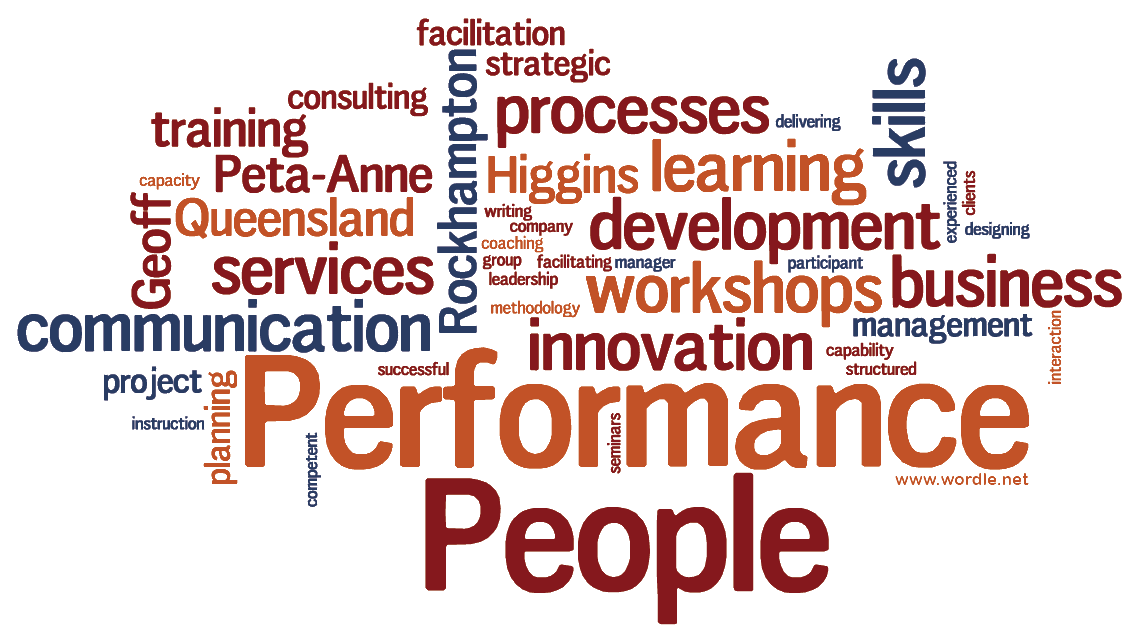
Wordle on Performance People Webpage (created at www.wordle.net)
I have previously written about what Wordles can used to achieve (click here for the post).  I thought it might be useful to explain how you can make one yourself, and how to transfer it to Word or PowerPoint.

Create a Wordle
  1. Open the Wordle webpage at www.wordle.net (or Google 'wordle').
  2. Click on Create in the sentence 'Create your own'.
  3. Paste some text into the large box on the screen.
  4. Click on the Go button.
  5. And check out your Wordle.
Edit a Wordle

Click 'Randomize' to see your Wordle presented in a number of ways.

You cannot add words (or 'grow' them by duplicating them multiple times) without going back to the Create window and repasting your text.

You can remove words by right clicking on the word and selecting 'Remove word'.  For example, a word which appeared in a header on every page may not be suited to the topic of your Wordle.

Browse through the menus immediately above your Wordle to see what you can change.  I particularly like the 'Edit Custom Palette' option.

At the bottom of the Language menu is the option 'Show word count'.  This brings up a box with the number of times each word appears.  You can re-sort the list by clicking on the column titles.  In case you are curious too, I pasted more than 25,000 words into Wordle to see whether there was a limit.  I did not find a limit.

Transfer a Wordle Elsewhere
Once you are satisfied with your Wordle, you will probably want to use it.  The Wordle creation screen includes options to 'Open in Window' or 'Print'.  However, these may not be sufficient.  You might like to put the image into a Word or PowerPointit file, or save an an image file or a PDF file.

To create an image file, or put it into Word or PowerPoint as an image, you can use a screen capture utility, like the useful Snipping Tool in Windows (Vista or later).
  1. Click 'Open in Window'.
  2. Drag the bottom right corner of the window out-and-down to fill your screen (to get the highest resolution screen capture you can).
  3. Launch the Snipping Tool using StartMenu>AllPrograms>Accessories>Snipping Tool (or on the keyboard, WindowsKey>snip>enter).
  4. Click in the top right corner and drag the pink box to envelope the Wordle.  (You may need to change the snip type to 'rectangular snip'.)
  5. The Wordle is now in your clipboard, and you can paste it into a Word or PowerPoint file.  Alternatively, you can use the Save function in the Snipping Tool to save the image as a JPG file.
To create a PDF, you can use a PDF creator, like the useful and free CutePDF Writer. Once installed, CutePDF Writer creates PDF files by pretending to be a printer.  (Click the 'Print' button on the Wordle creation screen; then select the printer called CutePDF Writer from the mini-menu on the Print box.  You will get another box in which you specify where the PDF file should be saved.)


All the best creating and using Wordles!

...Geoff
www.performancepeople.com.au

Wordle's Are For Presentation, Attraction & Analysis

Wordle on Performance People Webpage (created at www.wordle.net)
Wordles are visual representations of sets of words (see the wordle above that I have on the front page of my website - it is clearer there).  The individual words are presented with more frequently used words being larger and less frequently used words being smaller.  They are also presented randomly (in a jumbled manner), so that any connections within phrases and sentences are severed.

Just recently two people have asked me questions about Wordles.  One did not know what they were, or perhaps just what they are called, and the other was trying to transfer the Wordle they had created to another place. So I thought I would post about wordles, and their potential uses.

If you are familiar with Escher's explorations of absurdity and infinity, you will appreciate how pictures can entice you to look more closely.  Wordle's can have this effect, especially if you are familiar with the topic.  The Wordle at my website is also on a banner, and people often look more closely to the Wordle, to see what it says.
Wordle in Facilitation 101 (created at www.wordle.net)
Wordles are also a great way to present a big chunk of information in a novel way.  I use the Wordle above for this purpose.  It is the content of a Facilitation Skills workshop, and I put it up during the breaks.  It 'feels right' in this context, and reinforces key terminology from the workshop.

Wordle of 10 Blog Posts (created at www.wordle.net)
And finally, Wordles can be useful tools for the superficial analysis of large chunks of wordy information.

In the example above, the Wordle is from the first 10 posts of this Facilitation blog.  The biggest words are 'project', 'people' and 'PowerPoint'.  I think 'facilitation' and 'facilitator' should appear more often.  On closer examination of the 10 blog posts: three are about projects in appropriate ways; one long one is about PowerPoint; and I use the word 'people' a lot.  I made a mental note that my other professional life (in project management) should not take centre stage in a blog about facilitation; and to use words other than people more often.

Other ways to use Wordles for analysis include:

  • Identifying aspects of an organisation's culture or its values by Wordle-ing their last five Annual Reports.
  • Wordle-ing a speech to check for overuse of words (like 'people').
  • Putting a report into Wordle for some pointers towards your conclusions or to assist in writing your executive summary.  (Or in less formal situations, using a Wordle instead of an Executive Summary.) 

The Wordle website is here:  www.wordle.org.  I suggest you go and have a play.

...Geoff
www.performancepeople.com.au
Enhanced by Zemanta

Some Fun With PowerPoint

(Note:  Some suggestions in this post may involve using images for which the intellectual property is owned by an organisation or individual, such as DC Comics and Fox Network.  I believe that the activities I am suggesting here assist in promoting these properties, but the owners may see this differently.)

Photos and diagrams are often used in slideshows to communicate a message.  There are other useful ways to get your message across.  Cartoons are great popular culture, and when used appropriately can send a clear message, although sometimes only to those 'in the know'.

The Phantom is a great image of a mystical, helpful loner.  However, without a knowledge of the cartoon, this message would be missed in seeing this image.


These 'tools' appeal to kids of all ages:

The Addletters Bart Simpson Generator

Image source: www.addletters.com; copyright Fox Network
If you prefer the clouds of The Simpsons' title screen, you can use The Addletters The Simpsons Title Screen Generator.

There are many of these 'generators' on the web, including at www.txt2pic.com (where I found the 'for dummies' image generator I used below, and a cool sticky note generator) and www.says-it.com.  For many, many more, see The Generator Blog
Image source: www.txt2pic.com; probable copyright Wiley Publishing
If you would like to be a bit more creative, you can 'write a cartoon', for which there are a number of tools, from doing your own text in the last cell of a Dilbert strip to your own captions for the popular How Projects Really Work strip.  

Finally, a tool that can be used for fun while giving insight is the 'wordle'.  There are a few sites for generating these, but my favourite is wordle.net.
The words in my first three posts as a wordle (source: www.wordle.net)
I have used Wordles to summise a topic, reinforce key terminology, and to extract common words and phrases from brainstorming and other high input volume sessions.

...Geoff
www.performancepeople.com.au